
CMF-CW allows you to submit chemical search terms and automatically checks them against CW-control lists annotated with structures and metadata. On this page, we explain how to use the web interface—how to enter single or multiple search terms, select which CW-control lists to search, choose services for converting search terms into molecular structures, and configure the available search settings—as well as how to run the search and interpret the standard and verbose reports.
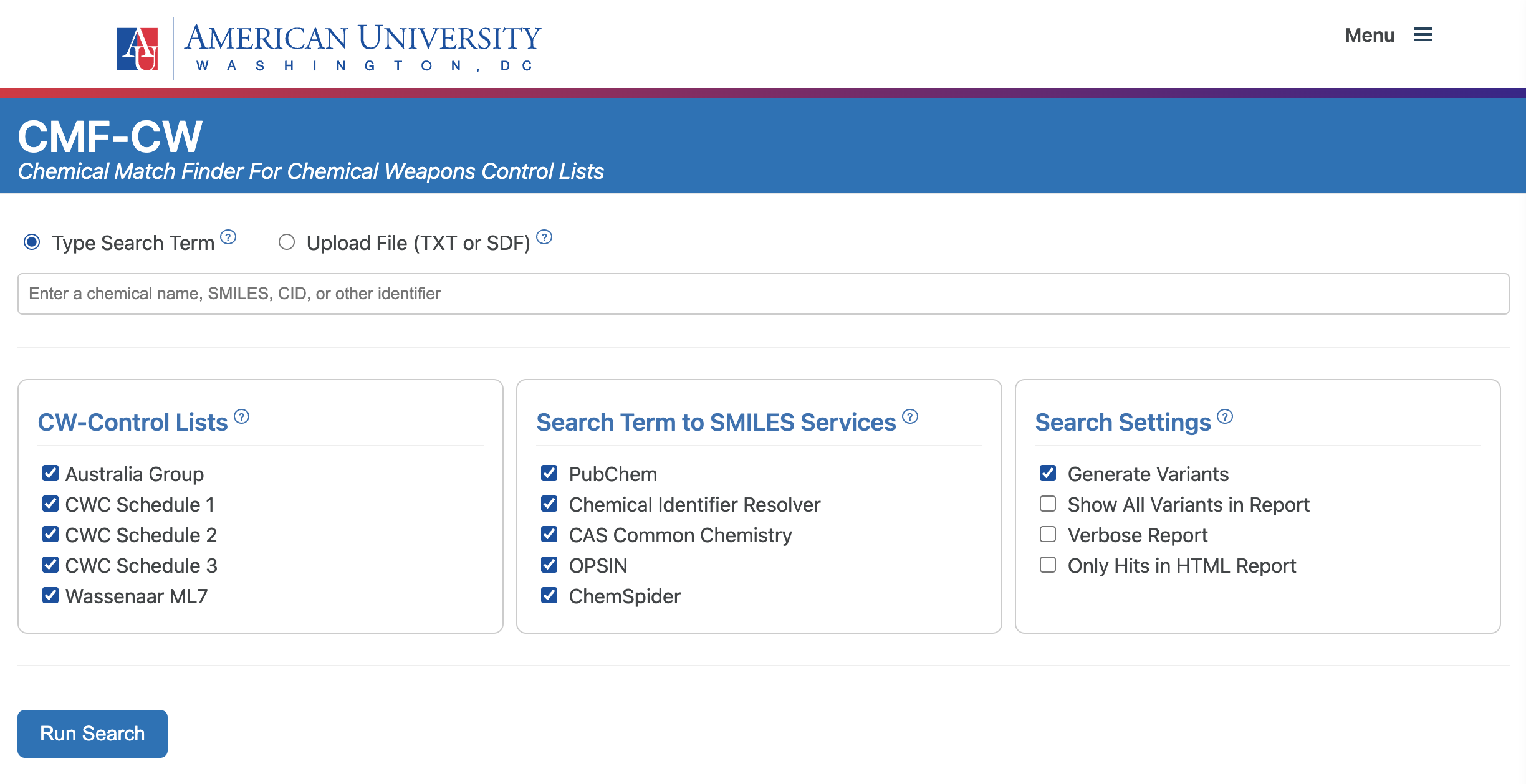
Important: Verifying All Results. Automated searches are powerful but not perfect. We recommend manually verifying all results, as both false positives and false negatives are possible. Follow the instructions below to launch a search and interpret the results.
- Search Modes
- CW-Control Lists
- Structure Services
- Search Settings
- Running the Search
- Interpreting the Report (Standard / Verbose)
- Sample Reports
- Learn More and Launch CMF-CW
Select your search mode and enter your search term(s)
Either type a search term or upload a file in TXT or SDF format.
- Single Search Term. Type any supported textual identifier directly into the search box.
This can include a chemical name (systematic or common), SMILES, InChI (always with the
InChI=prefix), InChIKey (with or without theInChIKey=prefix), CAS Registry Number®, PubChem CID, or ChemSpider CSID. Additional textual input—such as other database identifiers, catalog numbers, and some trade names—may also work if recognized by one of the lookup services.As you type a search term, CMF-CW displays autocomplete suggestions retrieved from Wikidata and PubChem. You can select one of the suggestions or enter the search term in full. The suggestions may include exact matches (e.g., “aspirin” → “aspirin”), approximate matches (e.g., “ibuprof” → “ibuprofen”), and alternative names (e.g., “oil of vitriol” → “sulfuric acid”). The autocomplete function operates independently of the services selected under Search Term to SMILES Services.
- TXT File Upload. Upload a plain text (TXT) file containing one search term per line. Each line should be a supported textual identifier, as listed above. Avoid extra columns or formatting.
- SDF File Upload. Upload a Structure Data File (SDF) containing chemical structures. The CMF-CW app will read the structural information directly from the file and will ignore any metadata or textual annotations.
Use search terms that can be converted to structures algorithmically.
- Whenever they are available, structural identifiers (SMILES and InChI codes) or SDF files are the most reliable search terms that can be used in CMF-CW, as they can be algorithmically converted into structures by CMF-CW directly. However, these are rarely used in chemical weapons nonproliferation-relevant settings.
- When structural identifiers aren’t available, systematic names are the most reliable search terms that can be used in CMF-CW, as they can be algorithmically converted into structures by CMF-CW directly through external services.
See How CMF-CW Works for more details on supported identifiers and how they are interpreted.
Choose which “CW-Control Lists” to search against
These include the Chemical Weapons Convention (CWC) Schedules, the Australia Group (AG) Chemical Weapons Precursors List, and the Wassenaar Arrangement (WA) Munitions List 7.
You can select one or more lists depending on your needs.
Select the “Search Term to SMILES Services”
These services are used by CMF-CW to translate your search term into a text string that represents its chemical structure (in SMILES format), which is in turn converted to a molecular structure object by CMF-CW. This conversion is necessary to check your search term against the structures in the annotated lists of controlled chemicals. Without this conversion, your search term can only be checked against the textual metadata in the annotated lists of controlled chemicals.
If you upload an SDF file, or your search term is a structural identifier in SMILES or InChI format, the structures are extracted directly by CMF-CW and do not require translation through these services.
Available services include:
- PubChem
- CIR (Chemical Identifier Resolver, developed by the U.S. National Cancer Institute)
- CAS Common Chemistry
- OPSIN (Open Parser for Systematic IUPAC Nomenclature)
- ChemSpider
It is recommended to select all services: they are processed in sequence until one successfully yields a structure. However, extra care is needed when the search term is a numerical database identifier, as using the wrong service can yield incorrect results.
Numerical database identifiers.
- When using a CAS Registry Number® as a search term, we strongly recommend using CAS Common Chemistry as the Search Term to SMILES Service. This is the most reliable public source of verified CAS Registry Numbers. Other services used by CMF-CW can derive structures from CAS Registry Numbers too. However, because CAS Registry Numbers are proprietary identifiers maintained by the Chemical Abstracts Service (CAS), some numbers found through sources other than CAS may be inaccurate or outdated.
- PubChem CIDs and ChemSpider CSIDs: PubChem CID and ChemSpider CSID numbers can be resolved into SMILES by PubChem and ChemSpider, respectively. These identifiers are purely numerical, and selecting the wrong service will lead to incorrect structure resolution. For example, the search term 971 will yield oxalic acid if resolved through PubChem and phenol if resolved through ChemSpider.
- Use 'CID:' and 'CSID:' tags: To prevent this kind of mismatch and to ensure that CMF-CW directs the query to the intended database, we strongly recommend prefixing PubChem CIDs with the 'CID:' tag and ChemSpider CSIDs with the 'CSID:' tag (e.g., enter 'CID: 971' or 'CSID: 971' rather than just '971'). This explicit notation forces CMF-CW to route the lookup to the correct source independently of the 'Search Term to SMILES Services' selection—that is, if you enter 'CID: 971', CMF-CW will use PubChem even if other services are selected.
See the How CMF-CW Works page for more information and guidance on how these services handle different types of search terms.
Configure “Search Settings”
These settings determine how your search term is processed and how the results are displayed following your search.
- Generate Variants
To enhance the robustness of the search, when the Generate Variants option is selected, CMF-CW attempts to generate possible variants of the chemical structure corresponding to your search term. Whether such variants are actually produced depends on the characteristics of the chemical corresponding to the search term. Some search terms will yield multiple variants, while others may only yield the original structure. If variants are generated, these are checked along with the original structure corresponding to the search term against the selected lists of controlled chemicals.When working with CW-control lists, selecting the Generate Variants option is advisable, as regulatory coverage applies not only to chemicals in their explicitly listed form, but also to those with the same structural formulas. This interpretation is explicitly supported by regulatory and advisory sources [1, 2, 3], covering all the chemical weapons control lists implemented in CMF-CW.
It is important to understand that, if a control list defines a specific, non-standard variant of a chemical (e.g., a salt form), CMF-CW will not find a match unless the search term includes the defining characteristic of that specific variant. For example, for the chemical triethanolamine hydrobromide, CMF-CW will produce the desalted variant (triethanolamine), but not different salt variants. Hence, triethanolamine hydrobromide will match the entry 46 (triethanolamine) but not entry 53 (triethanolamine chloride) of the Australia Group Chemical Weapons Precursors List. This behavior is intentional and important, as it preserves the specific constraints defined in the CW-control lists.
See the How CMF-CW Works page for more information on the variant-generation process. - Show All Variants in Report
When the Show all Variants in Report option is selected, the report will display the structures for each variant that CMF-CW produced for your search term, if any. Each variant is assigned a progressive number. For example, if the Show All Variants in Report option is selected and your search term is (S)-pinacolyl alcohol, the report will show the structure of the S enantiomer of pinacolyl alcohol, which is the structure directly corresponding to your search term, plus the structure of pinacolyl alcohol without stereochemical definition, labeled as Variant 1. Conversely, if the Show All Variants in Report is not selected, only the structure directly corresponding to your search term is shown for brevity. This setting only determines whether the variants are shown or not and does not prevent CMF-CW from producing the variants. - Verbose
When selected, the report will include more detailed information in the search results. See the Report section below to learn what information you will find in a standard and a verbose report. In most cases, opting for a standard report is recommended, to keep the report focused on the identification of controlled chemicals. A verbose report is useful for technical users who want more information about the search process. - Only Hits in HTML Report
Limits the report to entries that produced at least one match with the selected lists of controlled chemicals. This keeps the report focused and avoids clutter from unmatched entries.
Run the Search
After you have entered your search term and selected the desired settings, click the Run Search button to launch the search.
Report
After your search is complete, the CMF-CW webpage will display a report. Additionally, a green Download Report button will be displayed next to the Run Search button. Click it to download the report in HTML format. If you submit multiple search terms using a TXT or SDF file, the report will group the results for each search term into separate boxes, each marked with a gray border. The report will contain different amounts of information, depending on whether the verbose option was selected.
Standard report
Standard reports are divided into two sections: a Search Term section and a Matches Section. Depending on how the matches were found, this section can have a Matches in Structure Search and/or a Matches in Metadata Search component. If the search did not yield any matches, a No Matches Found message is shown.
Search Term
In the Search Term section, a standard report will include the following components.
- Search Term: The exact search term that you entered.
- PubChem CID: The PubChem CID for the chemical corresponding to your search term, if available. You can click on the link to open the related PubChem page and learn more about the chemical in question.
- Structure Box: If a chemical structure is found, it will be displayed in the box. If you selected the option in your settings, any structural variants generated by CMF-CW will also be shown. If no structure can be generated, your original search term will be displayed as text instead. The border of this box is color-coded to help you interpret the findings at a glance.
- Border Color:
- Red: Indicates a match was found (see Example 1s and Example 2s).
- White: Indicates no match was found, but a structure for your search term was successfully generated (see Example 3s).
- Orange: Indicates no match was found, and a structure for your search term could not be generated (see Example 4s).
- Border Color:
Verify all results. Manual verification of all results is strongly recommended, as both false positives and false negatives are possible. A Match (Red Border) should be checked for false positives; a No-Match (White or Orange Border) should be checked for false negatives. A manual follow-up is particularly important for an Orange Border result, which means no structure could be generated for your search term. In this case, the search relied only on metadata and could not perform a more thorough structural comparison, increasing the chance of a missed match.
Matches in Structure Search
If the structure search yielded one or more matches with the entries in the CW-control lists, the Matches Section will have a Matches in Structure Search component (see Example 1s). If the Generate Variants option was selected, the report will indicate, for each match, whether the matching chemical is the structure corresponding to the search term or a variant of the structure corresponding to the search term. If it is a variant, you can select the Show All Variants in Report option to inspect which variant produced a match. With the Show All Variants in Report option selected, the structure box will show all the variants produced by CMF-CW, each labeled with a progressive variant number. Concomitantly, the Matches in Structure Search section of the report will indicate the variant number that produced the match.
- CW-Control List. A clickable link to the official website of the CW-control list to which the matching entry belongs.
- Entry Number. The entry number of the matching entry in the CW-control list, along with a clickable link that opens the annotated version of the CW-control list in question in the Costanzi Research website, focusing on the matching entry.
- Entry Name. The chemical name officially reported for the matching entry in the CW-control list.
- PubChem CID. The PubChem CID for the matching entry chemical. This may be the same as the PubChem CID for the search term, if the entry matches the search term itself, or a different PubChem CID, if the entry matches a variant of the search term. A clickable link opens the related PubChem page. Note: for entries that identify families of chemicals, rather than individual chemicals, a PubChem CID cannot be provided, as PubChem CIDs are specific to individual chemicals.
Matches in Metadata Search
If the metadata search yielded one or more matches, the Matches Section will have a Matches in Metadata Search component (see Example 2s). For each entry of the CW-control lists that matches the search term, the report will provide the same information described above for the Matches in Structure Search section. Importantly, if, for a search term, a match with the same entry of a CW-control list is found in both the structure and metadata search, unless the verbose option is selected, the match is only shown once (under Matched in Structure Search) to avoid redundancy.
No Matches Found
If the search did not produce any matches, the Matches Section will show a No Matches Found message (see Example 3s). If the search term could not be converted into a structure, the following message is shown as well: “Note: No matches found, but the search term could not be converted to a structure – further checking is warranted” (see Example 4s). While manually double-checking the results is always advisable, this is particularly important when the search term could not be converted into a structure.
Verbose report
Search Term
In the Search Term section, in addition to the information included in the standard report, a verbose report will include the following information (compare the standard reports in Examples 1s-4s to the verbose reports in Examples 1v-4v).
- The service used to convert the search term into a structure (Search Term to SMILES Service).
- The SMILES string into which the search term was converted (Returned SMILES), if it wasn’t already a SMILES string.
- The canonical SMILES string corresponding to the search term (Canonical SMILES).
Variants
For each variant of the search term produced by CMF-CW, a verbose report will label each variant with a progressive number (compare Example 1s and Example 1v). Moreover, for each variant, it will include the following information.
- The PubChem CID code for the variant, if available.
- The SMILES code for the variant.
If no variants for your search term were produced by CMF-CW, this will be indicated in the verbose report.
Matches Sections
In a verbose report, the Matches Section is structured in the same way as in a standard report. However, unlike in a standard report, if, for a search term, a match with the same entry of a CW-control lists is found in both the structure and metadata search, the same match is shown twice, once under Matches in Structure Search and once under Matches in Metadata Search.
Sample Reports
The examples below demonstrate how CMF-CW presents results in both standard and verbose modes across a variety of scenarios: whether a match was found or not, and whether the search term could be successfully converted into a molecular structure. Each report shows how these outcomes are visually represented, including the color-coded structure box (red, white, or orange border). Click each example below to expand and view the full report.
Standard Reports
Example 1s: Triethanolamine Hydrochloride – Search term successfully converted to molecular structure and match found (red border)
Example 2s: Ricin – Search term not converted to molecular structure and match found (red border)
Example 3s: Triethylamine Hydrochloride – Search term successfully converted to molecular structure and no match found (white border)
Example 4s: Botulinum Toxin – Search term not converted to molecular structure and no match found (orange border)
Verbose Reports
Example 1v: Triethanolamine Hydrochloride – Search term successfully converted to molecular structure and match found (red border), verbose report
Example 2v: Ricin – Search term not converted to molecular structure and match found (red border), verbose report
Example 3v: Triethylamine Hydrochloride – Search term successfully converted to molecular structure and no match found (white border), verbose report
Example 4v: Botulinum Toxin – Search term not converted to molecular structure and no match found (orange border), verbose report
Learn More and Launch CMF-CW
To explore CMF-CW in more detail, visit the following pages:
- About CMF-CW – Background on the project
- Database of CW-Control Lists – The database currently implemented in CMF-CW
- How CMF-CW Works – Overview of the technical methodology and system design
- Frequenty Asked Questions – Answers to common questions about CMF-CW
When you are ready, launch the CMF-CW screening tool.
References
- Report of the Scientific Advisory Board on Developments in Science and Technology for the Fourth Special Session of the Conference of the States Parties to Review the Operation of the Chemical Weapons Convention. Fourth Review Conference of the Chemical Weapons Convention, RC-4/DG.1, 30 April 2018, p. 6: “...if a chemical is included within a schedule, then all possible isotopically-labeled forms and stereoisomers of that chemical should be included…” Link
- Wassenaar Arrangement, Public Documents, Volume II, List of Dual-Use Goods and Technologies and Munitions List, 2024, p. 3 and p. 181: “The list applies to chemicals of the same structural formula (including hydrates) regardless of name or CAS number.” Link
- The Australia Group, Export Control List: Chemical Weapons Precursors: “Chemicals of the same structural formula (e.g., hydrates, isotopically-labeled forms or all possible stereoisomers) are controlled regardless of name or CAS number.” Link